> For the complete documentation index, see [llms.txt](https://docs.mapsindoors.com/llms.txt). Markdown versions of documentation pages are available by appending `.md` to page URLs; this page is available as [Markdown](https://docs.mapsindoors.com/sdks-and-frameworks/integration-api/route-access.md).
# Route Access
#### Route Elements
A number of things can affect which routes the end users are given. Doors can be locked or there can we wait times along the way. This meta-data is contained in "route elements". A route element often represents a physical element in the real world that affects the routes such as doors and stairs.
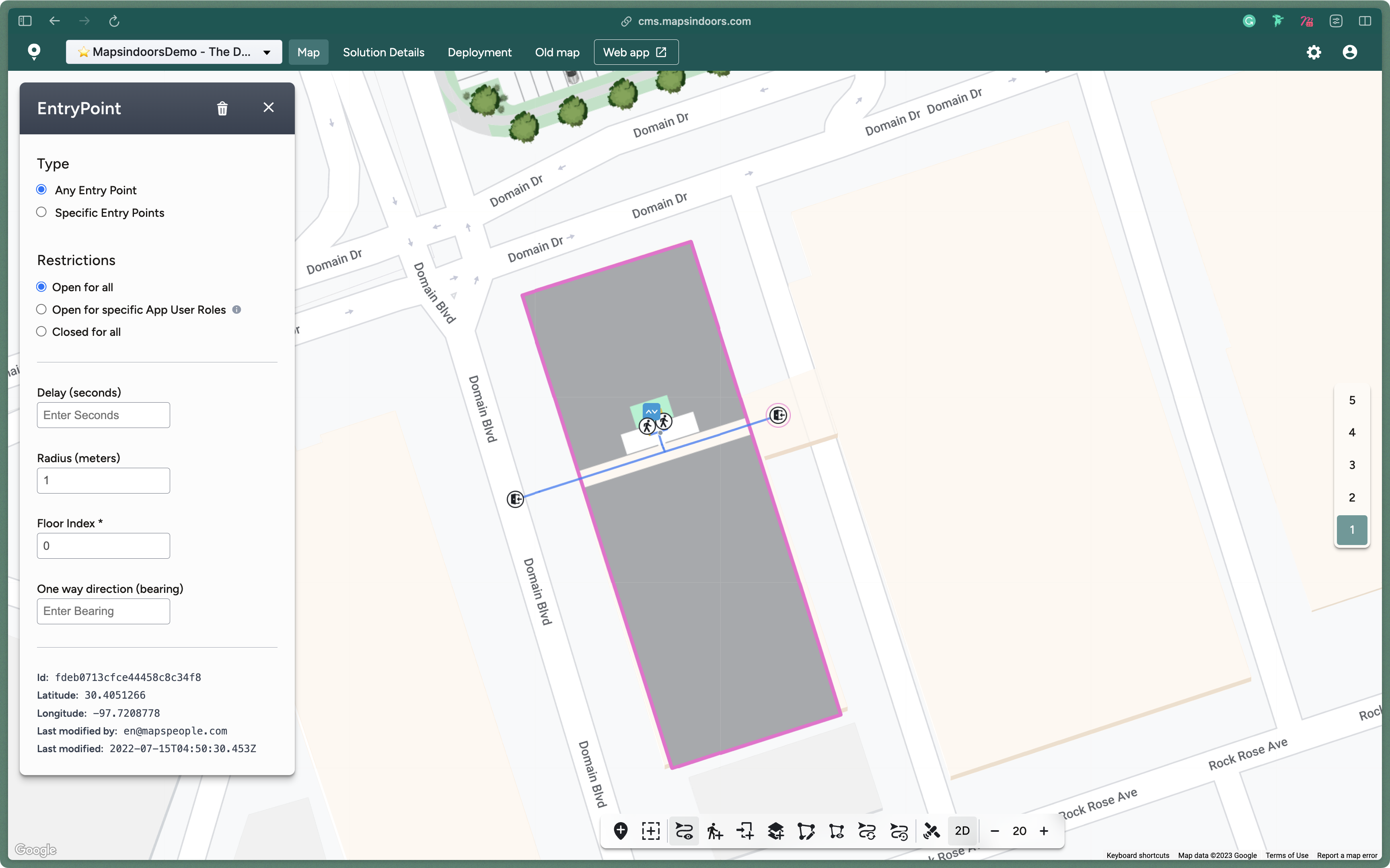
The route elements defined can be seen in the CMS in Map -> Route Access
Using the endpoint at /{apiKey}/api/routing/routeelements you can find and change the route elements in your solution.
At the moment 3 things can be modified:
* WaitTime (in seconds)
* OnewayDirection (Optional)
* Restrictions (optional)
**WaitTime**
Wait time is set in seconds and affects how long it takes to walk past this point. This is given as a natural number and thus may not be negative (but may be 0 if no extra wait time should occur at this point).
**OnewayDirection**
Oneway direction is an [absolute\_bearing](https://en.wikipedia.org/wiki/Absolute_bearing) and can be set to any number between 0 and 360 (degrees). Oneway is not mandatory, but can be used in situations where users can only walk in one direction. IF set - end users may only walk in the direction stated within the area (+/- 90 degrees)
**Restrictions**
With this setting you can restrict if users are allowed to go though this point. Restriction is not mandatory, but IF used it can used in two ways:
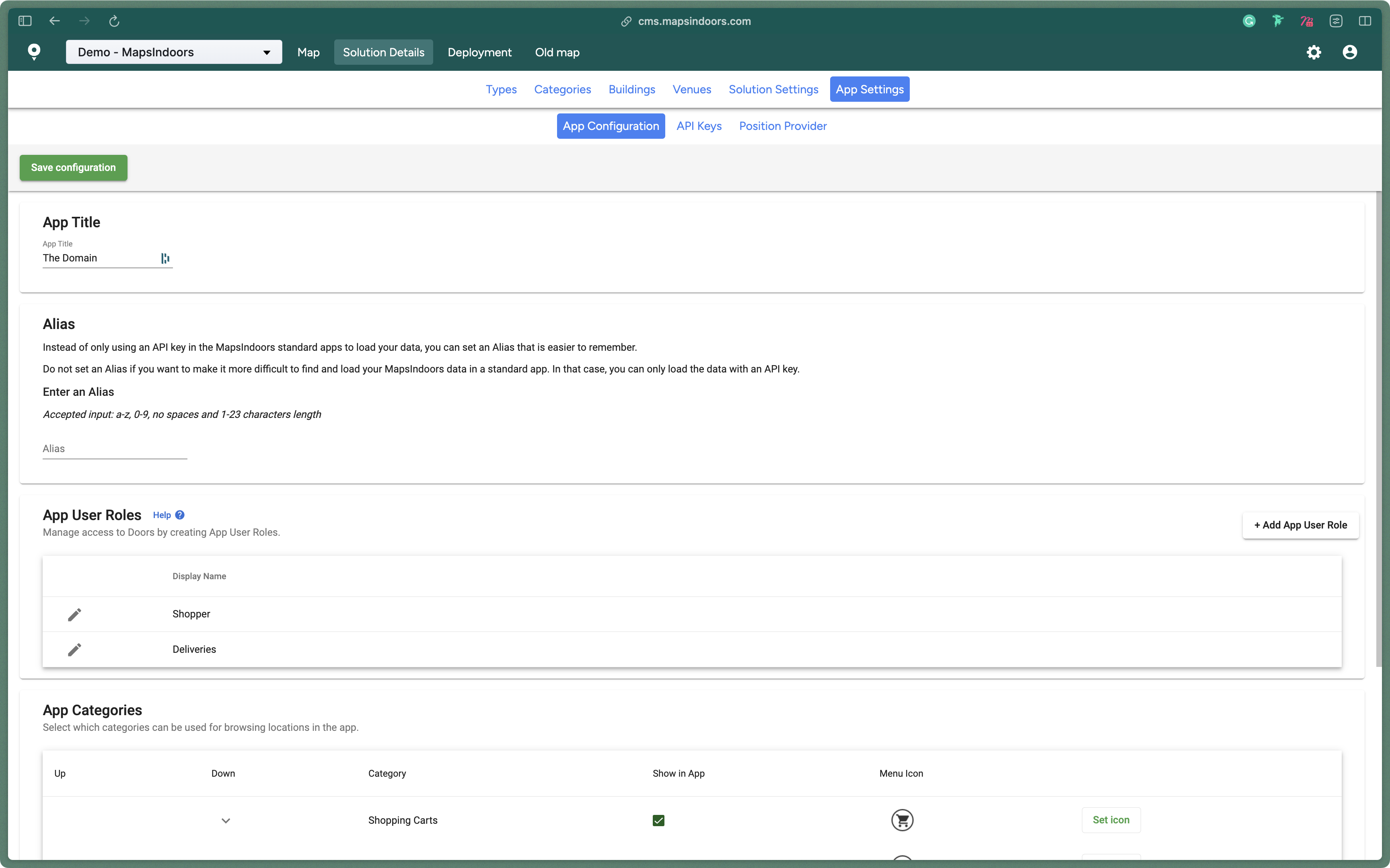
1\) It can be set to "locked" which implies that it's not possible to go though this point for anyone 2) It can be set to one or more App User Roles (refered by ID). App User Roles can be defined via the CMS in App Settings -> App Configuration:
Notice that you can get a list of available user roles using this endpoint from the intregrationAPI: /{apiKey}/api/appUserRoles
An example of a route element from the demo dataset looks like this:
```json
{
"id": "79edd6bb64724381bbf43923",
"datasetId": "550c26a864617400a40f0000",
"geometry": {
"coordinates": [
9.9577215,
57.0858134
],
"type": "Point"
},
"restrictions": [
"locked"
],
"waitTime": 0
}
```
#### Updating Elements
`PUT /{apiKey}/api/routing/routeelements` replaces WaitTime, Restrictions and OnewayDirection on every element you send. A field you leave out, or send as null, is cleared. A body with only `id` and `waitTime` therefore also opens a locked element and removes its oneway direction.
To change an element safely, read it with `GET /{apiKey}/api/routing/routeelements`, change only the field you want, and send the whole element back. The PUT ignores `datasetId`, `externalId` and `geometry`, so you can send them back as you read them.
To open an element, send `"restrictions": []`. To close it for everyone, send `"restrictions": ["locked"]`.
This body opens the element from the example above. It is the element as read from the GET, with only the restrictions changed:
```json
[
{
"id": "79edd6bb64724381bbf43923",
"datasetId": "550c26a864617400a40f0000",
"geometry": {
"coordinates": [
9.9577215,
57.0858134
],
"type": "Point"
},
"restrictions": [],
"waitTime": 0
}
]
```
---
# Agent Instructions
This documentation is published with GitBook. GitBook is the documentation platform designed so that both humans and AI agents can read, navigate, and reason over technical content effectively. Learn more at gitbook.com.
## Querying This Documentation
If you need additional information that is not directly available in this page, you can query the documentation by asking a question.
Perform an HTTP GET request on the following URL with the `ask` and `goal` query parameters:
```
GET https://docs.mapsindoors.com/sdks-and-frameworks/integration-api/route-access.md?ask=&goal=
```
`ask` is the immediate question: it should be specific, self-contained, and written in natural language.
`goal` is what the user is ultimately trying to achieve, the reason they need the answer. Sharing it helps GitBook give you a better, more relevant answer. A goal is most helpful when it describes the outcome the user wants rather than restating the question. For example, with `ask=how do I create an API token`, a goal like `automate deployments from our CI pipeline` lets GitBook tailor the answer to that use case.
The response will contain a direct answer to the question and relevant excerpts and sources from the documentation.
Use this mechanism when the answer is not explicitly present in the current page, you need clarification or additional context, or you want to retrieve related documentation sections.